
- Top Pick: Moaffzey 16GB(2x8GB) DDR3 RAM 1600MHz PC3-12800 CL11 Desktop Computer Memory, 240-Pin 1.5V 2Rx8 Dual Rank Non-ECC Unbuffered PC Computer RAM Stick Upgrade – Blue
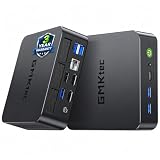
- Best Value: MeLE Business Grade PC Stick PCG02 Fanless Mini PC N100 8GB RAM 128GB Storage
- Premium Choice: Moaffzey 8GB DDR3 RAM 1866MHz PC3-14900 CL10 Desktop Computer Memory, 240-Pin 1.5V 2Rx8 Dual Rank Non-ECC Unbuffered PC Computer RAM Stick Upgrade – Blue
If your PC will not boot with all RAM sticks installed but runs with fewer, the fastest fix is to wait through memory training (it can take several minutes with four DDR5 modules), then clear the CMOS with every stick installed and disable XMP/EXPO so the board can start at default speed. If it still fails, test the sticks in stages to find out whether one module, one slot, or the combined load is at fault.
As an Amazon Associate we earn from qualifying purchases at no extra cost to you.


Safety first
- Shut down, switch off the power supply, and unplug the PC before touching RAM or the CMOS battery.
- Ground yourself on bare metal on the case and hold modules by their edges.
- Never open a power supply. If you suspect a PSU problem, contact the maker or a technician.
- BIOS changes and memory overclocking can cause instability and can affect warranty coverage. Keep settings conservative.
Symptoms
- Fans spin but the screen stays black.
- The motherboard shows a memory or boot debug light, or a Q-Code.
- The PC restarts repeatedly before POST.
- It boots with two sticks but not four, or with one stick but not two.
- It boots but only recognizes part of the installed memory.
Likely causes, ranked
- Long memory training. DDR5 retrains on first boot and after changes. Crucial notes training can take a long time, and a black screen for several minutes may be normal. With four modules it is longer.
- XMP or EXPO profile too demanding. Four DDR5 modules stress the processor’s memory controller more than two. Forum answers and board makers commonly suggest lower speeds when all slots are populated.
- Modules not fully seated. One loose stick can block POST.
- Mismatched or non-qualified kits. Mixing kits, brands, or capacities increases the chance of failure.
- Outdated BIOS. Memory compatibility often improves in later BIOS releases.
- One faulty module or slot.
- Bent CPU socket pins or a poorly seated CPU, which can show up as memory errors on some slots.
Step-by-step fixes, easiest first
- Be patient on first boot. After installing the sticks, leave the PC on for at least 10 to 15 minutes without interrupting it. Do not hold the power button during this time.
- Reseat every module. With the PC unplugged, unlatch each stick, remove it, and press it back until the latches click.
- Clear the CMOS. With the PC unplugged, use the board’s Clear CMOS button or jumper as described in the manual, or remove the coin cell for a minute. Keep all sticks installed so the board retrains with the full configuration.
- Boot with default settings. Do not enable XMP or EXPO yet. Get into Windows first.
- Test in stages. Boot with one stick in the primary slot named in the manual, then try each stick alone. Next, test pairs in the recommended slots, then add the third and fourth. This shows whether a particular module or slot is bad.
- Update the BIOS. If you can boot with fewer sticks, flash the latest BIOS from the board maker’s site using the board’s documented method. Do not interrupt the update.
- Check the QVL. The motherboard maker’s qualified vendor list shows which kits were tested, including four-module combinations.
- Enable the memory profile carefully. Once it boots at default speed, enable XMP or EXPO. If it fails with all sticks, pick a lower speed manually, such as a step or two below the rated figure, and test stability.
- Use one matched kit. Four separately bought modules are less likely to run well than a single four-module kit. A pair of larger modules, such as two 32 GB sticks, is often easier for the board than four smaller ones.
- Inspect the socket and slots. With power off and a flashlight, look for bent pins in the CPU socket on boards that use socket pins, and debris in the DIMM slots. Do not touch the pins. If you see damage, stop and contact the maker or a technician.
Quick-reference table: symptom, cause, fix
| Symptom | Likely cause | Fix |
|---|---|---|
| Black screen for minutes on first boot | DDR5 memory training | Wait 10 to 15 minutes, do not power off |
| Boots with two sticks, not four | Memory controller load or profile too high | Disable XMP/EXPO, lower speed, update BIOS |
| Won’t boot with any combination of one specific stick | Faulty module | Test alone in another slot, contact RAM maker |
| Fails in one slot only | Slot problem or dirt | Use other slots, inspect, contact board maker |
| Memory LED lit on the board | Memory not detected or failed training | Reseat, clear CMOS, test one stick |
| Mixed kits won’t run together | Mismatched timings or ICs | Use a single matched kit |
| Fine before BIOS update, now fails | Setting reset or regression | Clear CMOS, reload defaults, check the maker’s notes |
Why four sticks are harder than two
Each added module increases the electrical load on the memory channel. With two modules per channel, the signal is more difficult to keep clean at high speeds, so many board makers rate lower maximum speeds for four-module configurations. AMD and Intel list their official supported memory speeds by number of modules, and enthusiast reviewers regularly report that four-module DDR5 systems need slower speeds or looser timings than the headline rating on the box. This is normal behavior, not a defect.
If you need a large total capacity, a two-module kit of high-capacity sticks usually gives the most reliable result at higher speeds. If you do run four, expect to set the speed manually.
When to stop and contact the maker or a technician
- A single stick fails in every slot and on a different board: contact the RAM maker for replacement.
- Every stick works alone, but the board never trains any pair: contact the motherboard maker.
- You see physical damage, bent pins, burn marks, or a burning smell: stop, unplug, and seek a technician.
- The PC shuts down suddenly or has power faults: a failing power supply is possible; do not open it.
Prevention tips
- Buy memory from the motherboard’s qualified list where possible.
- Install all modules at once from a matched kit.
- Update the BIOS before adding memory.
- Save the BIOS profile that works so you can reload it after a CMOS clear.
- Change one memory setting at a time, and keep voltages within the maker’s stated limits.
Frequently Asked Questions
How long should I wait for the PC to boot after adding RAM?
On DDR5 systems, the first boot can include a long training period, and reports from memory makers and users suggest up to around 15 minutes in some cases. If the debug light stays on and nothing changes after that, move on to reseating and clearing the CMOS.
Why does my PC boot with two sticks but not four?
The memory controller works harder with four modules, so the speed that is stable with two may not work with four. Turn off XMP or EXPO, boot at default speed, and raise settings gradually. Some boards and kits simply do not support their top speed with all slots filled.
Can I mix different RAM kits?
It sometimes works, but it is the most common reason four-stick setups fail. The timings and chips may differ, so the board must find settings that fit both. A single matched kit is the safer choice.
Does clearing the CMOS delete my data?
No. Clearing the CMOS resets BIOS settings to defaults, not your drive contents. You will need to re-enter any custom settings, including boot order and fan curves.
Should I raise memory voltage to make four sticks work?
Small changes within the RAM maker’s rated profile are one thing, but raising voltage beyond the specifications can shorten component life and affect warranty coverage. Try lower speeds and a BIOS update first, and follow your motherboard and memory maker guidance.
How do I know which stick is faulty?
Test each stick alone in the same slot, then in a second slot. If one stick fails in every slot while the others work, that module is likely bad. A memory test tool run from a bootable USB can confirm errors on sticks that do boot.





Write Your Review
No reviews yet. Be the first to share your experience!