
The best PS5 monitor at a budget ceiling is a 4K IPS panel with a genuine HDMI 2.1 port, such as the Gigabyte M28U, because it can pass 4K at 120 Hz with variable refresh rate from the console. If your budget is tighter, a 1440p 144 Hz monitor is the sensible compromise, and a 1080p 120 Hz model is the lowest tier that still uses the PS5’s high-frame-rate modes.
- What a PS5 Needs From a Monitor
- At a Glance
- Resolution Choices
- Features to Prioritize
- Budget Tiers
- Also Works With a PC
- Pick X If… Decision Table
- Alternatives
- How to Set Up the PS5 With a Monitor
- Audio and Connections
- Screen Size and Distance
- Console Features Worth Knowing
- Warranty and Panel Quality
- IPS, VA and OLED Panels Compared
- Cables and Accessories
- Frequently Asked Questions
What a PS5 Needs From a Monitor
Roundups agree on the key facts. HDMI 2.1 carries 4K at 120 Hz with HDR and VRR, while an HDMI 2.0 port limits you to 4K at 60 Hz, or to 1440p or 1080p at higher refresh. The PS5 does not output above 120 Hz, so a 240 Hz panel adds nothing for the console alone. Variable refresh rate smooths frame-rate dips, and a low-latency game mode reduces input lag.
Most guides are affiliate-style lists and they disagree on top picks, so treat them as shortlists. Check the maker’s specification page for the port bandwidth, because some budget monitors advertise HDMI 2.1 features on a port with limited bandwidth.
At a Glance
| Monitor | Best for | Key stated specs | Limits |
|---|---|---|---|
| Gigabyte M28U | Best value 4K for PS5 | 28-inch 4K IPS, 144 Hz, two HDMI 2.1 ports per roundups | Edge-lit IPS; HDR is basic |
| Dell S2725QS | Everyday 4K use | 27-inch 4K, 120 Hz, HDMI 2.1 listed | Not a dedicated gaming panel |
| KOORUI G2741L | Value 27-inch 4K | Fast IPS, up to 160 Hz, HDMI 2.1 | Less established brand; limited service history |
| ASUS TUF Gaming VG27UQ1A | 4K 120 Hz without chroma subsampling | Reported to run 4K 120 Hz on PS5 over HDMI 2.1 | Older design |
| MSI MAG 272URDF E16 | Lowest-cost 4K with HDMI 2.1 | Declares HDMI 2.1 per one roundup | Confirm port bandwidth |
| Gigabyte G27Q | 1440p budget | 27-inch 1440p, high refresh | HDMI 2.0 limits 4K modes; 1440p on PS5 works |
| Dell SE2426HG | 1080p 120 Hz | Described as supporting 120 Hz on PS5 | Lower resolution |
Resolution Choices
4K with HDMI 2.1
This is the target for sharp visuals and the console’s performance modes at 120 Hz. Games that offer a 120 Hz mode often render below native 4K and upscale, so the benefit is smoothness more than raw pixels. Choose a 27-inch or 28-inch size for a desk.
1440p
The PS5 supports 1440p output on recent system software. A 1440p 144 Hz monitor can be a good value, particularly for a console and PC shared setup. Pixel density is high on a 27-inch panel.
1080p at 120 Hz
A fine entry option for competitive shooters, and the cheapest route to 120 Hz. Image quality is softer on larger screens, so keep to 24 inches.
Features to Prioritize
- HDMI 2.1 bandwidth: The key spec for 4K 120 Hz. Read the manual for which port is full bandwidth.
- VRR support: Helps with uneven frame rates.
- Input lag and response time: Check reviewer measurements.
- HDR: Entry panels usually only accept an HDR signal and cannot show strong highlights. Treat HDR certification at this tier as a bonus.
- Speakers and audio jack: Many monitors have weak speakers, so a headset is preferable.
- Stand: Height adjustment matters for comfort.
Budget Tiers
| Tier | Direction | Trade-off |
|---|---|---|
| Budget | 1080p 120 Hz or 1440p 144 Hz | Lower detail, no 4K |
| Mid-range | 27-inch or 28-inch 4K IPS with HDMI 2.1 | Best match for PS5; basic HDR |
| Premium | OLED monitors such as Alienware AW3225QF, ASUS ROG Swift OLED, Sony Inzone M9 II | Great contrast and response; higher tier and burn-in care |
Also Works With a PC
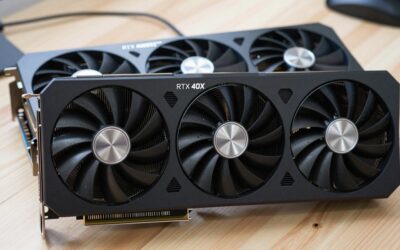
A 4K 144 Hz monitor with HDMI 2.1 and DisplayPort also serves a gaming PC. A mid-range card such as an RTX 5070 or RX 9070 can drive 1440p high refresh, and an RTX 5070 Ti or RX 9070 XT class card is the usual route for 4K, so one monitor can work for both machines. Use DisplayPort for the PC and HDMI 2.1 for the console.
Pick X If… Decision Table
| Pick this | If you… |
|---|---|
| Gigabyte M28U | Want 4K 120 Hz and a PC option at a mid-range tier |
| Dell S2725QS | Want a clean, all-purpose 4K display |
| KOORUI G2741L | Want a lower-tier 27-inch 4K and accept a newer brand |
| Gigabyte G27Q | Prefer 1440p and a tighter budget |
| Dell SE2426HG | Play competitive games at 1080p 120 Hz |
| OLED model | Want contrast and speed, and can go above the budget |
Alternatives
- TV: A 4K TV with HDMI 2.1 is a strong console display if you have the room.
- Ultrawide: PS5 support for ultrawide is limited, so check game compatibility first.
- Used monitors: They can save money, but confirm the port generation.
How to Set Up the PS5 With a Monitor
- Connect the console to the monitor’s HDMI 2.1 input with a cable certified for the bandwidth. The cable bundled with the PS5 is designed for this use.
- Turn on the monitor’s HDMI 2.1 or enhanced mode in its menu, if it has one, since some models disable full bandwidth by default.
- On the console, open the video output settings and confirm the resolution, 120 Hz output and VRR options.
- Enable the monitor’s game mode to reduce input lag, and turn off extra processing such as motion smoothing.
- Check HDR in the console’s calibration screen and adjust the monitor’s brightness for the result you prefer.
Audio and Connections
Monitors with a headphone jack let you pass audio from the HDMI signal to a wired headset, though many players prefer a USB or wireless headset connected directly to the controller. Built-in speakers are usually weak. If you also plan to use a gaming PC, a monitor with DisplayPort, USB-C and a USB hub is more flexible, and a PC with an RTX 5070 or RX 9070 class card can drive 1440p at high refresh rates.
Screen Size and Distance
A 27-inch to 28-inch 4K monitor suits a desk about 60 to 80 cm from your eyes, which shows detail without hiding the screen corners. A 24-inch 1080p monitor suits a closer seat, and larger sizes at that resolution look soft. If you sit farther back on a couch, a TV is usually the better pick than a monitor.
Console Features Worth Knowing
- 120 Hz modes: Only some games offer them, and many reduce resolution to hold the frame rate.
- VRR: Works with supported games and displays, and can improve titles that lack a fixed frame rate.
- Auto low latency mode: Many monitors switch to game mode automatically when they detect the console.
- PS5 Pro: If you own the Pro model, the same HDMI 2.1 needs apply, so a monitor with full bandwidth remains the key spec.
Warranty and Panel Quality
At a budget tier, panel quality varies between units, with backlight bleed and uneven edges being the usual issues. Read the warranty terms from the manufacturer, particularly its policy on dead pixels, and check how easy it is to return the monitor if it has a defect. Established brands tend to have clearer support channels, and lesser-known brands may offer more features for the money with less certain service.
IPS, VA and OLED Panels Compared
| Panel | Strength | Weakness | Best for |
|---|---|---|---|
| IPS | Good colors and wide viewing angles; most 4K budget models use it | Modest contrast, some backlight glow in dark rooms | General console gaming and shared PC use |
| VA | Higher contrast for darker scenes | Slower pixel response can smear fast motion | Story-driven games in dim rooms |
| OLED | Near-perfect blacks and very fast response | Higher tier, care needed with static images | Players who can stretch past a budget ceiling |
For a budget buyer, IPS is the dependable default, and the speed of the HDMI port matters more than the panel type. VA models can look great in a dark room but reviewers often flag motion blur in fast shooters. OLED monitors have been named in roundups as top overall picks, but they sit above a budget ceiling.
Cables and Accessories
Use the HDMI cable that comes with the PS5 or another cable labeled Ultra High Speed. Cheap older cables can cause flicker or fall back to 60 Hz. A monitor arm frees desk space and puts the screen at a comfortable height, and a headset stand or small shelf under the screen keeps the setup tidy. If the monitor lacks speakers, a wired or wireless headset is the simplest audio solution.
Frequently Asked Questions
Does the PS5 need a 144 Hz or 240 Hz monitor?
No. The console outputs a maximum of 120 Hz. A higher refresh rate only helps if you also use the monitor with a PC.
Is HDMI 2.1 required?
For 4K at 120 Hz, yes. With HDMI 2.0, you get 4K at 60 Hz or lower resolutions at higher refresh rates. Check that the port you use is the full-bandwidth one.
Is 1440p supported by the PS5?
Yes, current system software outputs 1440p. Many monitors at this resolution are reasonable budget picks. Confirm the setting in the console’s video menu.
Is HDR on budget monitors worth using?
Basic HDR can look dim or washed out, so test it in games and switch it off if it looks worse. Brighter HDR requires higher tiers.
Can I use a monitor for both PS5 and PC?
Yes, if it has both HDMI 2.1 and DisplayPort. Use a separate input for each and set the correct signal format. This is a common way to save money.
Are lesser-known brands safe to buy?
They can offer good value, but service and quality control vary. Read the warranty terms and look for independent reviews of the exact model.

Write Your Review
No reviews yet. Be the first to share your experience!