
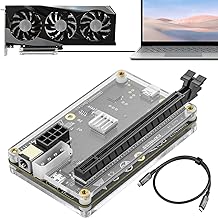
- Top Pick: PCIE 3.0 x16 22Gbps eGPU DOCK, Thunderbolt 4 cable, compatible with external GPU NVIDIA AMD Graphics Card for Windows Laptop Console featuring Thunderbolt 3/4 USB 4, Powered by PD/8PinCPU/Molex/DC5521
- Best Value: California JOS GPU Support Bracket Graphics Card Brace Anti-Sag Holder Height Adjustable Video Card Stand Large(1 PCAK, Black)
- Premium Choice: Computer Accessory Graphics Card Tester with Light,AGP PCI E Double Purpose Display Video Graphics Card Tester for Computer Accessory
MPO GPU fix is what you search for when your screen starts flickering, video playback stutters, or you get random black flashes for no obvious reason, and your NVIDIA card seems to be the culprit. The frustrating part is that your hardware is usually fine; the problem is a Windows display feature called Multi-Plane Overlay. This guide explains what MPO is, why it causes these glitches, and exactly how to fix them safely, from a simple driver update to a straightforward registry tweak, so you can get back to a stable, glitch-free display.
What Is the MPO GPU Issue?
Before applying any fix, it helps to understand what is actually going wrong. The problems people blame on their GPU are frequently caused by a Windows feature interacting badly with graphics drivers rather than by faulty hardware. Knowing the cause makes the fix far less intimidating and helps you confirm you are solving the right problem.
What Multi-Plane Overlay Does
Multi-Plane Overlay, or MPO, is a Windows feature designed to improve efficiency by letting the system composite different layers of the display, such as video and the desktop, separately and hand more of that work to the GPU. In theory this reduces power use and improves performance for tasks like video playback.
The idea is sound, and on many systems MPO works quietly in the background with no issues at all. When it functions correctly, you never notice it, which is exactly how a background optimization should behave.
The trouble arises when MPO interacts poorly with certain graphics drivers, monitor configurations, or applications, at which point the feature meant to help instead causes visible glitches. That mismatch is the root of the problems this guide addresses, and it is why the fixes focus on either updating the software or disabling the feature.
Symptoms of MPO Problems
The signs of an MPO issue are fairly distinctive once you know them. Common symptoms include screen flickering, especially during video playback or when moving windows, brief black screens or flashes, stuttering in videos or while scrolling, and cursor or display corruption that appears and disappears seemingly at random.
These glitches often show up more on multi-monitor setups or when hardware acceleration is active in browsers and apps. If your display looks fine in games but flickers during everyday desktop use and video, MPO is a strong suspect, which points you toward the fixes below rather than toward suspecting a failing graphics card.
It helps to note when the symptoms appear, since timing is a clue. If the glitches began after a recent Windows or driver update, that strongly points to MPO rather than hardware, because a healthy card does not suddenly develop flickering from a software change. Paying attention to that pattern saves you from expensive and unnecessary hardware troubleshooting for what is really a software interaction.
Why It Affects NVIDIA GPUs
MPO issues are not exclusive to NVIDIA, but they are frequently reported on NVIDIA systems because of how the feature interacts with certain driver versions and configurations. Specific combinations of Windows updates, NVIDIA drivers, and display setups can trigger the misbehavior even when each component works fine on its own.
Because the problem lives at the intersection of Windows and the graphics driver, it can appear after a Windows or driver update and vanish after another, which makes it feel random. Understanding that it is a software interaction, not a hardware fault, reassures you that the fixes are safe and that your GPU itself is almost certainly healthy.
This is also why the same card can work flawlessly on one system and glitch on another: the outcome depends on the exact mix of Windows version, driver, and display setup. Rather than being a sign your particular card is defective, it is simply that your current software combination happens to trigger the issue, which the fixes below are designed to neutralize without any hardware changes at all.
How to Fix the MPO GPU Problem
There are two main approaches to resolving MPO glitches, and it is best to try the simpler one first. Working through them in order lets you fix the issue with the least effort and only reach for the more involved solution if the easy step does not resolve it.
Update Your Drivers First
Before changing any system settings, update your NVIDIA graphics drivers to the latest version, since NVIDIA and Microsoft have addressed some MPO-related issues through updates. A fresh, clean driver installation resolves the problem for many people without any further steps.
Updating Windows to the latest version is equally worthwhile, as fixes for these display interactions can arrive on either side. If a recent update caused the problem, a newer one may well solve it, so bringing both your drivers and Windows fully up to date is the sensible, low-risk first move.
If updating alone clears the flickering and stutter, you are done, and you have avoided touching system settings entirely. Only if the problem persists after updating should you move on to disabling MPO directly, which is the more definitive fix.
Disabling MPO via the Registry
If updates do not solve it, disabling MPO through the Windows Registry is the reliable, widely used fix. Because it edits the registry, follow the steps carefully, and consider backing up the registry first for peace of mind.
1. Press Windows key + R, type regedit, and press Enter to open the Registry Editor.
2. Navigate to the key HKEY_LOCAL_MACHINE\SOFTWARE\Microsoft\Windows\Dwm.
3. Right-click in the right pane, choose New, and create a DWORD (32-bit) Value named OverlayTestMode.
4. Set its value to 5, which disables Multi-Plane Overlay.
5. Close the Registry Editor and restart your computer so the change takes effect.
After rebooting, MPO is disabled and the associated flickering, stutter, and black flashes should be gone. This is the fix that resolves the issue for the majority of affected users when a driver update alone does not.
Pros and Cons of Disabling MPO
Weighing the trade-off helps you decide with confidence. The clear pro is that disabling MPO reliably eliminates the flickering, stuttering, and black-flash glitches, restoring a stable display, and the change is easily reversible by deleting the registry value if you ever want it back.
The only real con is that you lose whatever minor efficiency benefit MPO provided, which in practice is negligible for most users and far outweighed by having a glitch-free screen. There is no meaningful downside to performance or stability from turning it off, which is why disabling MPO is a widely recommended and safe solution rather than a risky workaround.
After the Fix and Troubleshooting
Once you have applied a fix, a quick check confirms it worked, and knowing what to try if MPO was not the cause keeps you from getting stuck. A little follow-up ensures your display stays stable for good.
Verifying the Fix Worked
To confirm the fix, use your system the way that previously triggered the glitches: play a video, move windows around, scroll through pages, and use any multi-monitor setup. If the flickering, stutter, and black flashes are gone, the fix has worked and you can consider the issue resolved.
Give it a little time across a normal session rather than judging after a moment, since these glitches can be intermittent. A stable display through the activities that used to cause problems is the clear sign that disabling MPO, or the driver update, did its job.
If the glitches ever return later, it is usually because a major Windows update reset or reintroduced the behavior, in which case simply reapplying the same fix restores stability. Knowing this means an occasional recurrence is nothing to worry about, since the solution is quick to put back in place whenever it is needed.
Other Fixes If MPO Is Not the Cause
If the glitches persist after updating drivers and disabling MPO, the cause may lie elsewhere. Toggling off hardware acceleration in browsers and apps, checking your monitor cables and refresh-rate settings, and testing a different cable or port can reveal a connection or configuration issue masquerading as an MPO problem.
It is also worth confirming your drivers installed cleanly, since a corrupted driver can cause similar symptoms that a clean reinstall resolves. Ruling these out ensures you are not disabling MPO in vain when a different, simple fix would have solved a separate underlying issue.
Working methodically through these alternatives, one at a time, is the fastest way to isolate the true cause. If disabling MPO did not help, re-enabling it and testing the other fixes keeps your system tidy and ensures you end up addressing the real problem rather than stacking unnecessary changes on top of one another.
Frequently Asked Questions About the MPO GPU Fix
These quick answers resolve the questions that most often come up around the MPO GPU fix.
Is disabling MPO safe? Yes. It is a widely used, reversible registry change with no meaningful downside for most users, and it can be undone by deleting the value.
Will it hurt gaming performance? No. Disabling MPO does not harm gaming performance, and any efficiency it provided is negligible compared with having a stable, glitch-free display.
See More:
- NVIDIA
- NVIDIA DeepStream
- NVIDIA GPU driver update
- NVIDIA GeForce NOW download
- NVIDIA RTX A2000 12GB driver
Final Thoughts on the MPO GPU Fix
The MPO GPU fix is one of those problems that looks alarming but is genuinely easy to solve once you understand it. Your graphics card is almost certainly fine; the flickering, stutter, and black flashes come from a Windows feature interacting badly with your drivers. Start by updating your drivers and Windows, and if that does not resolve it, disabling Multi-Plane Overlay with a simple, reversible registry tweak reliably restores a stable display. Start with updates, apply the simple registry tweak if needed, and verify across the activities that used to fail. With the fix in place, you can get back to smooth video and glitch-free everyday use, confident that your GPU was never the real problem and that the solution is easy to reapply if a future update ever brings the issue back.
As an Amazon Associate we earn from qualifying purchases at no extra cost to you.












Write Your Review
No reviews yet. Be the first to share your experience!