
The best graphics cards for DaVinci Resolve in 2026 are the GeForce RTX 5070 Ti and RTX 5080 for most 4K editors, the RTX 5060 Ti 16GB for budget 1080p and light 4K work, and the RTX 5090 with 32GB for 6K–8K timelines and heavy noise reduction. Resolve leans on the GPU harder than most editors, so VRAM capacity and hardware decode support usually matter more than raw gaming performance.
This guide explains why Resolve is so GPU-dependent, works out how much VRAM different timelines consume, and maps common editing workloads to a card.
Why Resolve Cares So Much About the GPU
Resolve processes color, effects, scaling, noise reduction and Fusion compositing on the GPU in 32-bit floating point. The CPU handles some decoding and timeline logic, but nearly everything you see in the viewer passes through the graphics card. That gives three distinct jobs for a gpu for video editing in Resolve:
- Decode: NVDEC hardware decodes H.264, H.265 and AV1 footage so scrubbing stays smooth.
- Process: CUDA cores and VRAM handle grading nodes, Magic Mask, Super Scale and temporal noise reduction.
- Encode: NVENC hardware exports H.264, H.265 and AV1 quickly.
One licensing detail matters: on Windows, GPU-accelerated H.264 and H.265 decoding is a feature of DaVinci Resolve Studio. The free version still uses the GPU for processing, but long-GOP camera files decode on the CPU, so a powerful GPU will not fix choppy playback of phone or mirrorless footage in the free edition.
VRAM Per Timeline: The Worked Numbers
Resolve holds frames in 32-bit float RGBA, which is 16 bytes per pixel. One frame takes:
| Timeline resolution | Pixels per frame | One frame at 32-bit float RGBA | Temporal NR (about 6 frames buffered) | Practical VRAM floor |
|---|---|---|---|---|
| 1080p (1920 × 1080) | 2.07 million | ~33 MB | ~200 MB | 8 GB |
| UHD 4K (3840 × 2160) | 8.29 million | ~133 MB | ~800 MB | 12 GB, 16 GB preferred |
| 6K (6144 × 3456) | 21.2 million | ~340 MB | ~2.0 GB | 16 GB minimum |
| 8K (7680 × 4320) | 33.2 million | ~531 MB | ~3.2 GB | 24–32 GB |
Those frame buffers multiply across every node that needs its own copy, plus decoded source frames, render cache, Fusion layers and AI features like Magic Mask. A 4K grade with a dozen nodes, temporal NR and a Magic Mask can push past 10 GB, which is why 12GB cards hit “GPU memory full” errors in heavy 4K projects while 16GB cards do not. For gpu for 4k editing, treat 16GB as the comfortable target.
Codec Support: The Blackwell Advantage
Many cameras record 10-bit 4:2:2 H.264 or H.265, which older GeForce cards could not hardware-decode. The RTX 50 series added 4:2:2 decode support, so Sony, Canon, Panasonic and Fujifilm 4:2:2 files can play back on the GPU in Resolve Studio instead of choking the CPU. This is one of the strongest reasons to choose a current nvidia gpu for davinci resolve over an older card with similar VRAM.
| Footage type | RTX 40 series decode | RTX 50 series decode | Recommendation |
|---|---|---|---|
| H.264/H.265 8-bit 4:2:0 (phones, drones) | Yes | Yes | Any modern RTX card |
| H.265 10-bit 4:2:0 | Yes | Yes | Any modern RTX card |
| H.264/H.265 10-bit 4:2:2 (many mirrorless cameras) | No, CPU decode | Yes | RTX 50 series or proxies |
| AV1 | Yes | Yes | Any RTX 40 or 50 card |
| ProRes, BRAW, R3D | Not NVDEC; CPU or GPU debayer | Not NVDEC; CPU or GPU debayer | Fast CPU plus ample VRAM |
Card-by-Card Recommendations
| Card | VRAM | Best for | Typical price range |
|---|---|---|---|
| GeForce RTX 5060 Ti 16GB | 16 GB | 1080p and light 4K, budget builds | Usually $430–$500 |
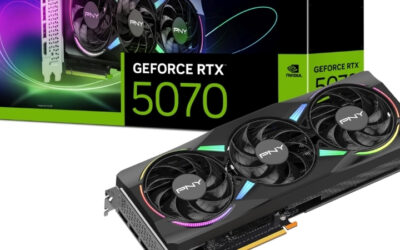
| GeForce RTX 5070 | 12 GB | 1080p and moderate 4K without heavy NR | Usually $550–$650 |
| GeForce RTX 5070 Ti | 16 GB | Most 4K editors and colorists | Usually $750–$900 |
| GeForce RTX 5080 | 16 GB | Faster 4K grading, heavier effects | Usually $1,000–$1,300 |
| GeForce RTX 5090 | 32 GB | 6K–8K, Fusion, heavy NR, multicam | Usually $2,000–$3,000+ |
| RTX PRO 6000 Blackwell | 96 GB | Studio finishing, 8K+ with extreme node trees | Usually $8,000–$10,000 |
Why the RTX 5060 Ti 16GB beats the RTX 5070 for some editors
The RTX 5070 is faster in raw compute, but its 12GB can run out in node-heavy 4K grades. If your projects regularly use temporal noise reduction or Magic Mask at 4K, the slower 16GB card may finish more sessions without memory errors. If your edits are mostly cuts, titles and light grading, the RTX 5070’s speed wins.
RTX 5090: when 32GB is worth it
The RTX 5090 carries three NVENC encoders and two NVDEC decoders, which speeds multi-stream exports and multicam playback, and its 32GB covers 8K timelines with room for Fusion. For pure 4K work the extra cost buys speed rather than capability.
Decision Matrix
| Your workflow | Recommended card |
|---|---|
| Free Resolve, 1080p YouTube edits | RTX 5060 Ti 16GB |
| Resolve Studio, 4K 4:2:2 camera footage, moderate grading | RTX 5070 Ti |
| Professional 4K color, client sessions, NR on most shots | RTX 5080 |
| 6K/8K RAW, multicam, Fusion VFX | RTX 5090 |
| Feature or broadcast finishing, huge node trees | RTX PRO 6000 Blackwell |
Settings That Get More From Any Card
- Preferences, Memory and GPU: set GPU processing mode to CUDA and select your card manually rather than Auto.
- Decode options: in Studio, enable hardware acceleration for H.264/H.265 and keep “Use NVIDIA” checked.
- Optimized media or proxies: for RAW formats or footage your GPU cannot decode, generate proxies in DNxHR LB or ProRes Proxy.
- Render cache: set to Smart and place the cache on a fast NVMe drive.
- Driver: use the NVIDIA Studio Driver branch, which is validated against creative apps.
Bottom Line
Size VRAM to your timeline first: 16GB covers almost all 4K work, 32GB covers 8K. Choose an RTX 50 card if your camera records 4:2:2, and remember that the free version of Resolve does not use the GPU for long-GOP decoding on Windows. Get those three factors right and Resolve becomes one of the smoothest editors to run.




Write Your Review
No reviews yet. Be the first to share your experience!