
- Top Pick: NVIDIA GeForce RTX 5080 Founders Edition
- Best Value: NVIDIA GeForce RTX 3090 Founders Edition Graphics Card (Renewed)
- Premium Choice: NVIDIA – GeForce RTX 4080 16GB GDDR6X Graphics Card
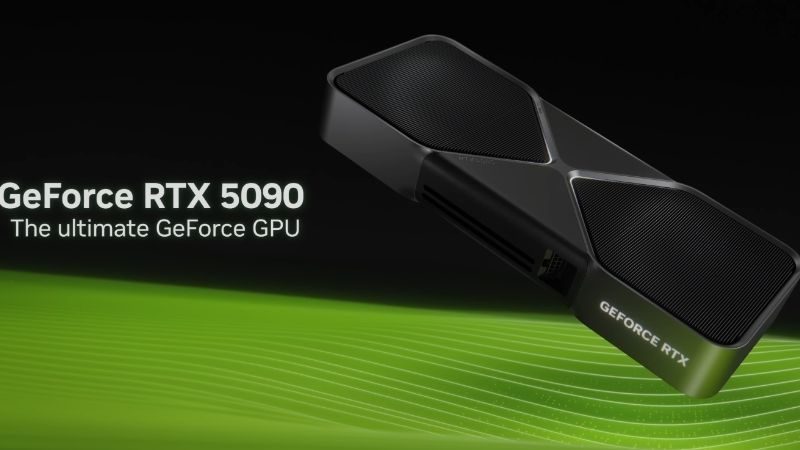
Nvidia 5090 drivers are what unlock the full potential of Nvidia’s flagship graphics card, and getting them right matters more on a $1,999 GPU than on any other. The RTX 5090 is a monster of a card, with 32GB of GDDR7 memory, a massive Blackwell core, and a power appetite to match, so keeping it fed with the right drivers is essential for stability and peak performance. Whether you are chasing maximum frame rates or rock-solid reliability for creative work, this guide covers which drivers to use, how to install and optimise them, and the best practices that keep a 5090 running flawlessly.
Getting The Right Drivers For Your RTX 5090
With a card this powerful, choosing and installing the correct drivers is the foundation of a good experience. Nvidia offers more than one driver type, and keeping them current matters more on a flagship than most users expect. Here is how to get the right drivers onto your 5090 from the start.
Game Ready Versus Studio Drivers
Nvidia offers two main driver branches for the RTX 5090, and the right one depends on how you use the card. Game Ready drivers are optimised for the latest games and deliver day-one performance in new releases, making them the default choice for gamers. They prioritise gaming above all.
Studio drivers, by contrast, are tuned for stability and creative applications, with extensive testing and less frequent updates. For creators using the 5090’s huge memory for rendering, video, or AI work, they offer superior reliability. Many professionals prefer them for exactly that reason.
The good news is you can switch between the two branches freely depending on your needs. Gamers should generally run Game Ready, while creators and stability-focused users may prefer Studio. Knowing both exist lets you match the driver to how you actually use your flagship card.
How To Install And Update Drivers
The easiest way to manage 5090 drivers is through the Nvidia App, which detects your card and offers the correct drivers automatically. It streamlines installation and keeps you informed when updates are available. For most owners, it is the simplest and safest route.
Through the app, you can choose between Game Ready and Studio drivers and install them with a few clicks. Selecting the clean installation option during setup resets settings and clears any conflicts. This built-in convenience makes staying current effortless.
You can also download drivers manually from Nvidia’s official website if you prefer more control or need a specific version. Either way, always use official sources to guarantee genuine, safe files. Sticking to Nvidia’s own channels is the golden rule for a flagship investment.
Keeping Drivers Current On A Flagship
On a card as new and powerful as the RTX 5090, staying reasonably current with drivers matters more than on older hardware. Early in a flagship’s life, updates frequently unlock performance and fix issues in the newest games. Keeping up ensures you get the full value of your purchase.
That said, updating the very moment a driver appears is not always wise, as brand-new releases occasionally carry their own bugs. Waiting a few days after a release lets any early problems surface for other users first. This balanced approach captures the benefits while avoiding the risks.
The sensible rhythm is to update regularly but not blindly, checking that a new driver is stable before relying on it. For a flagship, that mix of staying current and staying cautious delivers the best of both worlds. It keeps your 5090 fast without sacrificing reliability.
Optimizing 5090 Performance And Stability
Once the right drivers are installed, a few settings and habits help you extract the flagship performance the 5090 is capable of. This section covers the driver features that matter, the issues owners occasionally hit, and how to fix them cleanly. These steps keep the card at its best.
Driver Settings That Matter
The RTX 5090’s drivers unlock the full DLSS 4 feature set, including Multi Frame Generation, which is exclusive to the RTX 50-series. Enabling it in supported games multiplies frame rates dramatically, making it one of the most impactful settings you can use. It is a defining advantage of the card.
The Nvidia App and control panel also let you tune settings like power management and low-latency modes to suit your priorities. For competitive gaming, low-latency options sharpen responsiveness, while balanced settings suit general use. These controls let you tailor the card to your play style.
For creators, driver-level optimisations in Studio drivers improve performance and stability in professional applications. Matching your driver settings to your workload is how you get the most from the 5090’s enormous capability. A little tuning goes a long way on hardware this powerful.
It is worth remembering that on a card this capable, the drivers are doing an enormous amount of work behind the scenes to keep that performance consistent. Spending a few minutes in the control panel to match power, latency, and upscaling settings to how you actually use the 5090 ensures none of that potential is left untapped in your day-to-day games and projects.
Common Driver Issues And Fixes
Even on a flagship, occasional driver issues can appear, such as instability after an update or a specific game misbehaving. The first step is usually to confirm the problem started after a driver change, which points clearly to the cause. Identifying the timing is half the battle.
If a new driver causes trouble, rolling back to a previous stable version from Nvidia’s archive often resolves it quickly. Keeping a known-good driver on hand makes this painless. It is the fastest fix for update-related problems.
For persistent issues, a clean install using a driver removal tool clears leftover files that may be causing conflicts. This thorough approach fixes problems that a simple reinstall cannot. It is the reliable fallback when quicker fixes fall short.
When A Clean Install Is Needed
A clean install is the most thorough way to resolve stubborn driver problems on the 5090, removing every trace of the old driver first. Using a free tool like Display Driver Uninstaller in Safe Mode gives the cleanest result. It is the enthusiast’s standard fix for tricky cases.
This approach is especially worthwhile after major driver updates or if you have been switching between Game Ready and Studio branches. Starting fresh avoids the conflicts that mixing versions can create. On a flagship you rely on, that reliability is worth the few extra minutes.
Once the clean install is done and verified stable, your 5090 should deliver its full performance without lingering issues. Making this your go-to fix for serious problems keeps the card running flawlessly. It is the most dependable tool in your driver toolkit.
Best Practices And Verdict
A flagship card deserves flagship care, and a few best practices keep your 5090 stable and fast for the long haul. This final section shares pro tips, the hardware that helps your drivers deliver, and a clear verdict on managing 5090 drivers well. These habits protect your investment.
Pro Tips For 5090 Owners
Always download drivers only from the Nvidia App or Nvidia’s official website, never from third-party sites. On a card this valuable, genuine, safe files are non-negotiable. This single habit protects both performance and security.
Keep one known-good driver installer saved for emergencies, so you can recover instantly if an update misbehaves. For a flagship you depend on, that safety net is especially valuable. It turns a potential disruption into a quick recovery.
Finally, adopt a steady update rhythm rather than chasing or ignoring every release, updating regularly but only after confirming stability. This balanced discipline keeps your 5090 current and dependable. It is the approach that serves flagship owners best over time.
Pairing Drivers With The Right Hardware
Great drivers only shine when the rest of your system can support the 5090’s demands, starting with power. The card’s high power draw means a high-wattage, quality power supply of 1,000W or more with the correct connector is essential for stability. Skimping here undermines everything else.
Cooling matters too, since a flagship under full load generates significant heat that a well-ventilated case must handle. Strong airflow keeps the card at its best and protects long-term reliability. Pairing the 5090 with proper cooling lets its drivers deliver sustained performance.
Getting these foundations right ensures your drivers and settings translate into the smooth, flagship experience the 5090 promises. The right power and cooling are what let the software shine. It is worth investing in them to match a card of this calibre.
Think of it as completing the system rather than an optional extra. A flagship GPU starved of clean power or adequate airflow will never deliver what its drivers are capable of, so treating a quality power supply and strong cooling as part of the same purchase is what turns a 5090 on paper into a 5090 in practice.
See More:
- RTX 4060 vs RTX 5060
- M4 GPU benchmark
- RTX 5060 Ti benchmark
- 5060 Ti 16GB vs 9070 XT
- RTX 5050 vs RTX 5060
Final Verdict On 5090 Drivers
Managing your RTX 5090 drivers well is essential to unlocking the flagship performance you paid for, from choosing the right branch to keeping a steady update rhythm. With the correct drivers and a sensible approach, the card delivers its full, extraordinary capability.
Pair good driver habits with a clean install when needed and the right supporting hardware, and your 5090 will run flawlessly for years. Treat driver management as part of caring for a premium investment, and the card rewards you with its best.
In short, getting your Nvidia 5090 drivers right, from picking Game Ready or Studio to updating steadily and clean-installing when needed, is what unlocks the flagship’s full performance and stability. Backing that up with the proper power and cooling lets the software truly shine. To keep your 5090 stable at its best, check current high-wattage power supplies and cooling upgrades through the link below.
Frequently Asked Questions
Which driver branch should RTX 5090 owners use?
For gaming, install the latest Game Ready driver, which includes day-one optimisation and profiles for new releases. If you use the card mainly for rendering, video editing or AI workloads, the Studio driver branch updates less often and prioritises stability and application certification over new-game tuning. Do not mix branches without a clean uninstall.
What power supply does the RTX 5090 need?
The 5090 has a 575W board power and uses a single 12V-2×6 connector, so Nvidia recommends a 1000W supply, and an ATX 3.1 unit with a native 12V-2×6 cable is strongly preferable to a four-way 8-pin adapter. Seat the connector fully until it clicks, since partial insertion is the known cause of connector overheating.
How do I get the best performance from my 5090?
Keep drivers current, enable Resizable BAR in your UEFI, and use the Nvidia App to apply per-game optimised profiles. Enable DLSS 4 with the transformer model and multi frame generation in supported titles, and make sure your monitor is running at its full refresh rate with G-Sync or VRR active.
Why is my 5090 underperforming in some games?
The most common cause is a CPU bottleneck at 1080p or 1440p, because the card is fast enough that the processor becomes the limit below 4K. Other causes include Resizable BAR disabled, a PCIe slot running at reduced lanes, power limits from an inadequate supply, or a game that has not yet been optimised in the current driver.
Should I use DDU when updating 5090 drivers?
Routine updates do not need it, since the standard installer with the clean installation option checked is normally sufficient. Reach for DDU when you are troubleshooting crashes, driver timeouts, black screens or when switching between the Game Ready and Studio branches, as leftover components from a different branch can cause instability.
As an Amazon Associate we earn from qualifying purchases at no extra cost to you.










Write Your Review
No reviews yet. Be the first to share your experience!