
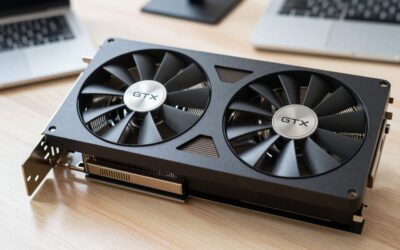
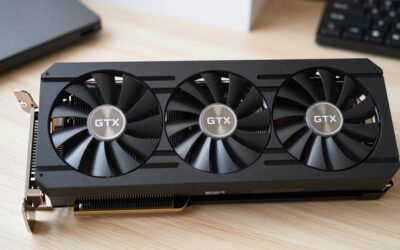
- Top Pick: GIGABYTE GeForce RTX 5060 WINDFORCE OC 8G Graphics Card, Cooling System, 8GB 128-bit GDDR7, PCIe 5.0, Manufactured by NVIDIA, DisplayPort & HDMI – Video Output Interface, GV-N5060WF2OC-8GD Video Card
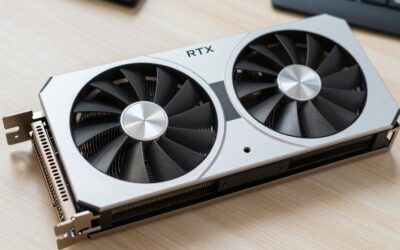
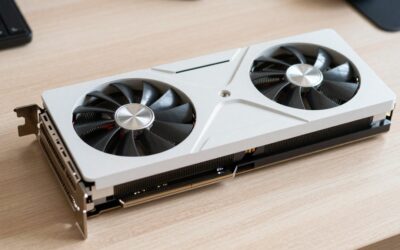
- Best Value: ASUS Prime GeForce RTX 5070 12GB GDDR7 OC Edition Gaming Graphics Card
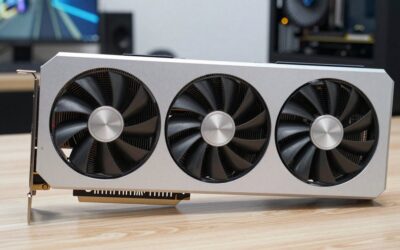
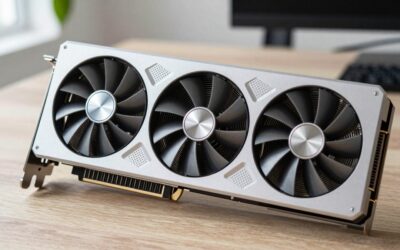
- Premium Choice: GIGABYTE GeForce RTX 5070 Ti Eagle OC ICE SFF 16G Graphics Card, 16GB 256-bit GDDR7, PCIe 5.0, WINDFORCE Cooling System, GV-N507TEAGLEOC ICE-16GD Video Card
Quick answer: Most NVIDIA App failures — a blank window, an endless spinner, “Something went wrong,” or a login loop — trace back to a stalled Display Container service, a blocked network path, or a corrupted local cache. Restart the NVIDIA services, launch as administrator, clear the app cache, then repair or clean-install the driver.
- Why the NVIDIA App stops working on Windows 11
- 1. Restart the NVIDIA Display Container services
- 2. Run the NVIDIA App as administrator
- 3. Firewall, VPN and “it doesn’t work because I’m overseas”
- 4. Clear the NVIDIA App cache
- 5. Repair versus clean reinstall — pick the right one
- 6. Update — or roll back — the graphics driver
- 7. Wrong clock and certificate errors that break login
- 8. Conflicting overlays: Discord, Xbox Game Bar and RTSS
- 9. DCH versus Standard driver mismatch
- Troubleshooting: what still goes wrong
- Frequently Asked Questions
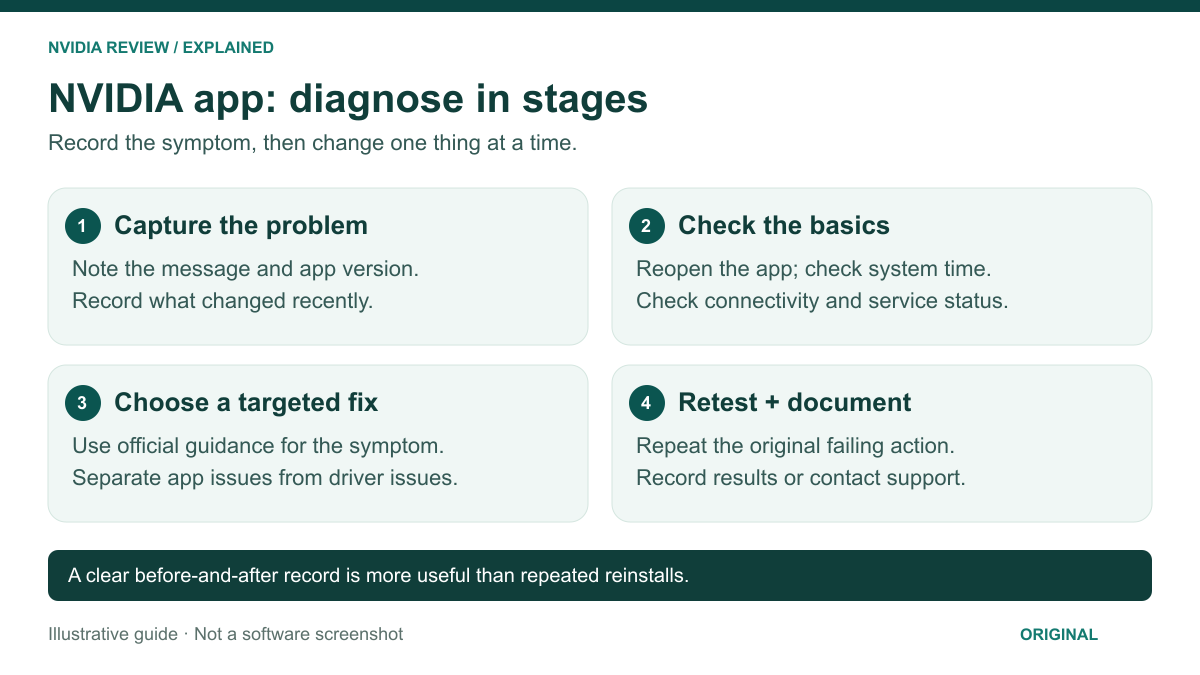
Why the NVIDIA App stops working on Windows 11
The NVIDIA App is really three things stacked together: a background service (NVIDIA Display Container), a web-based UI shell, and a driver downloader. When the app “doesn’t work,” one of those layers has failed, not all three — and knowing which one turns a reinstall marathon into a two-minute fix. Our breakdown of how the NVIDIA App compares to GeForce Experience covers what changed. Work through the fixes below in order; they are sorted by how often they actually solve it.
1. Restart the NVIDIA Display Container services
Symptom: the app opens to a blank window, spins forever on the splash screen, or reports that it is not installed correctly — often with the Control Panel missing from the desktop right-click menu.
Steps: press Win+R, type services.msc, press Enter. Right-click NVIDIA Display Container LS and choose Restart; do the same for NVIDIA LocalSystem Container if listed, and set both to Startup type Automatic. From an elevated prompt: net stop NVDisplay.ContainerLocalSystem then net start NVDisplay.ContainerLocalSystem.
Did it work? Relaunch the app — if the Home tab renders and the Drivers tab shows your installed version, the service was the only casualty.
2. Run the NVIDIA App as administrator
Symptom: the app launches but settings refuse to save, driver downloads sit at 0%, or the overlay hotkey does nothing — classic on accounts that are not local administrators.
Steps: right-click the shortcut and choose Run as administrator. If that fixes it, make it permanent via Properties > Compatibility > “Run this program as an administrator.” The executable sits under C:\Program Files\NVIDIA Corporation\NVIDIA App, so launching it there also rules out a broken shortcut.
Did it work? Change a setting, close the app, reopen it. If the setting stuck and downloads move past 0%, permissions were the blocker.
3. Firewall, VPN and “it doesn’t work because I’m overseas”
Symptom: the interface loads but the Drivers tab is empty, downloads stall, or the sign-in panel renders as a blank rectangle. Very common on hotel Wi-Fi, campus and corporate networks, and with a VPN connected.
Steps: in Windows Security > Firewall & network protection > “Allow an app through firewall,” confirm the NVIDIA App and NVIDIA Web Helper are ticked for Private and Public. Disconnect any VPN and retry — the driver CDN is not region-locked, but VPN exit nodes are often rate-limited. If your antivirus does HTTPS/SSL scanning (ESET, Avast, Kaspersky), disable that module temporarily; it breaks the app’s certificate chain. On filtered DNS, a public resolver usually restores the driver list.
4. Clear the NVIDIA App cache
Symptom: a login loop where signing in returns you straight to the sign-in screen, a permanently stuck splash screen, or UI elements from a previous version bleeding through.
Steps: quit the app from the tray, then end any remaining NVIDIA App processes in Task Manager. Paste %LOCALAPPDATA%\NVIDIA Corporation\NVIDIA App into File Explorer and delete the folder’s contents, not the folder itself. Do the same for %LOCALAPPDATA%\NVIDIA\NvBackend, then relaunch.
Did it work? Landing on a fresh sign-in prompt instead of the same spinner means the cache was corrupt and has been rebuilt.
5. Repair versus clean reinstall — pick the right one
Reinstalling is where most people overshoot: wiping the driver with DDU when only the app shell is broken costs an hour and risks a black screen. Match the method to the symptom.
| Method | Rough time | What it keeps | Use when |
|---|---|---|---|
| Reinstall the app only | 3–5 min | Driver, profiles, game settings | UI is broken but games and display output are fine |
| Driver “clean installation” checkbox | 10–15 min | Windows install, your files | Features greyed out, GPU detected but misbehaving |
| DDU wipe in Safe Mode | 25–40 min | Nothing NVIDIA-related | Driver type mismatch, failed installs, GPU swap |
For the app-only route, uninstall “NVIDIA App” in Settings > Apps, reboot, then run the current installer from nvidia.com. For the middle option, run the full driver package, choose Custom (Advanced) and tick “Perform a clean installation.” Our step-by-step on doing a clean driver install with DDU covers the nuclear option safely.
6. Update — or roll back — the graphics driver
Symptom: the app reports no supported hardware, features are greyed out after a Windows update, or recording and DLSS overrides silently fail.
Steps: in the Drivers tab, update using the Custom option plus clean installation. If the trouble started right after an update, reverse it: Device Manager > Display adapters > your GPU > Properties > Driver > Roll Back Driver, or install the previous branch manually. We keep a running note on which NVIDIA driver branch to be on when a release turns out to be a dud.
If HVCI / Memory Integrity blocks the driver install
Windows 11 blocks drivers it considers incompatible with Hypervisor-protected Code Integrity, which surfaces as an install that rolls back or an app that never detects the GPU. In Windows Security > Device security > Core isolation, switch Memory integrity off, reboot, install the driver, then turn it back on and reboot. If Windows re-flags it, the Core isolation warning names the offending file — usually an old overclocking utility driver.
7. Wrong clock and certificate errors that break login
Symptom: “Create account” does nothing, sign-in bounces back to the login page, or you see a secure-connection error inside the app window.
Steps: the login screen is a web view, so it fails exactly like a browser would. In Settings > Time & language > Date & time, enable “Set time automatically,” fix the time zone and hit Sync now. A clock that is days or years off — typical after a dead CMOS battery or dual-booting Linux — invalidates every TLS certificate the app touches. Then install pending Windows updates for current root certificates, and repair the Microsoft Edge WebView2 Runtime in Settings > Apps, since account pages render through it.
Did it work? The login panel should render fields rather than a blank box, and sign-in should complete first try.
8. Conflicting overlays: Discord, Xbox Game Bar and RTSS
Symptom: the app works on the desktop but freezes in game, Alt+Z does nothing, or titles crash on launch with the overlay enabled.
Steps: disable Discord’s in-game overlay, turn Xbox Game Bar off in Settings > Gaming, close RivaTuner Statistics Server and MSI Afterburner, and disable the Steam overlay for that game, then re-enable them one at a time. RTSS is the usual suspect because it hooks the same present path NVIDIA’s overlay uses. If capture is what fails, see fixing ShadowPlay recording problems.
Did it work? Alt+Z should open the overlay instantly and the game should launch without crashing.
9. DCH versus Standard driver mismatch
Symptom: the app installs, then insists no supported hardware is present, or the NVIDIA Control Panel is missing entirely from the Start menu.
Steps: the modern app requires a DCH driver. Check yours in NVIDIA Control Panel > Help > System Information, where the driver type sits next to the version. If it says Standard, you are on a legacy package — usually inherited from an old OEM image. Remove it with DDU in Safe Mode and install the current DCH package from nvidia.com. Since the Control Panel ships as a Microsoft Store component under DCH, reinstalling it from the Store fixes the “Control Panel missing” case too. If the GPU never appears at all, start with why Windows stops detecting a graphics card.
Troubleshooting: what still goes wrong
Laptops are the biggest outlier: on Optimus and MUX designs the app may show the integrated GPU, and some OEMs lock you to their own driver builds, so check the laptop maker’s support page first. On OEM Windows 11 images, a half-completed update can leave two app versions registered — uninstall both, reboot, install once. Caches are per-user, so test a second Windows account before reinstalling anything. And if antivirus quarantines NvContainer, the services restart then die instantly; check the quarantine log. If you suspect the GPU itself is the real limit, our current 1440p graphics card picks beat a fourth reinstall.
Thinking About a GPU Upgrade?
If driver and app tweaks are not enough, these in-stock RTX 50-series cards cover the main budget tiers.
As an Amazon Associate we earn from qualifying purchases at no extra cost to you. Prices as of Oct 5, 2026 and subject to change.


Frequently Asked Questions
Why does the NVIDIA App keep asking me to log in?
A login loop almost always means the local cache or the embedded web view is corrupt, not that your password is wrong. Quit the app fully, clear the NVIDIA App folder in %LOCALAPPDATA%, set Windows date and time automatically, and repair the Edge WebView2 Runtime before signing in again.
Do I actually need an NVIDIA account to use the app?
No. Driver updates, control panel settings, game optimisation, the performance overlay and recording all work without signing in. An account is only needed for rewards, bundle redemption and GeForce NOW. If account creation keeps failing, skip it and keep using every core feature while you troubleshoot login separately.
Does the NVIDIA App stop working when I travel overseas?
The app is not region-locked and the driver CDN serves every country, so travelling does not disable it. What breaks it is the network you land on: hotel captive portals, VPNs, corporate proxies and filtered DNS block the endpoints it uses. Disconnect the VPN and try another network before assuming a regional block.
Should I turn Memory Integrity back on after installing the driver?
Yes — turn it back on once the driver is installed and the machine has rebooted. Core isolation is a real security protection and current NVIDIA drivers are compatible with it; disabling HVCI is only a temporary step past an install Windows refuses. If it re-flags a driver, Windows names the offending file.
Can I go back to GeForce Experience if the NVIDIA App keeps failing?
GeForce Experience is no longer the supported front end, so rolling back leaves you on ageing software without current fixes. A cleaner path is a DDU wipe followed by a fresh DCH driver and app install. If you only want driver updates, installing the driver package alone and skipping the app is valid — see our notes on restoring the NVIDIA Control Panel.

Write Your Review
No reviews yet. Be the first to share your experience!