
To overclock a graphics card, you use software like MSI Afterburner to gradually raise the GPU core clock, memory clock, and power limit while stress-testing for stability and monitoring temperatures. Done carefully, overclocking squeezes free extra performance from your existing card, often yielding a five to fifteen percent frame-rate boost with no new hardware. The process is safe when approached methodically, since modern cards protect themselves by throttling or crashing rather than sustaining damage.
As an Amazon Associate I earn from qualifying purchases.
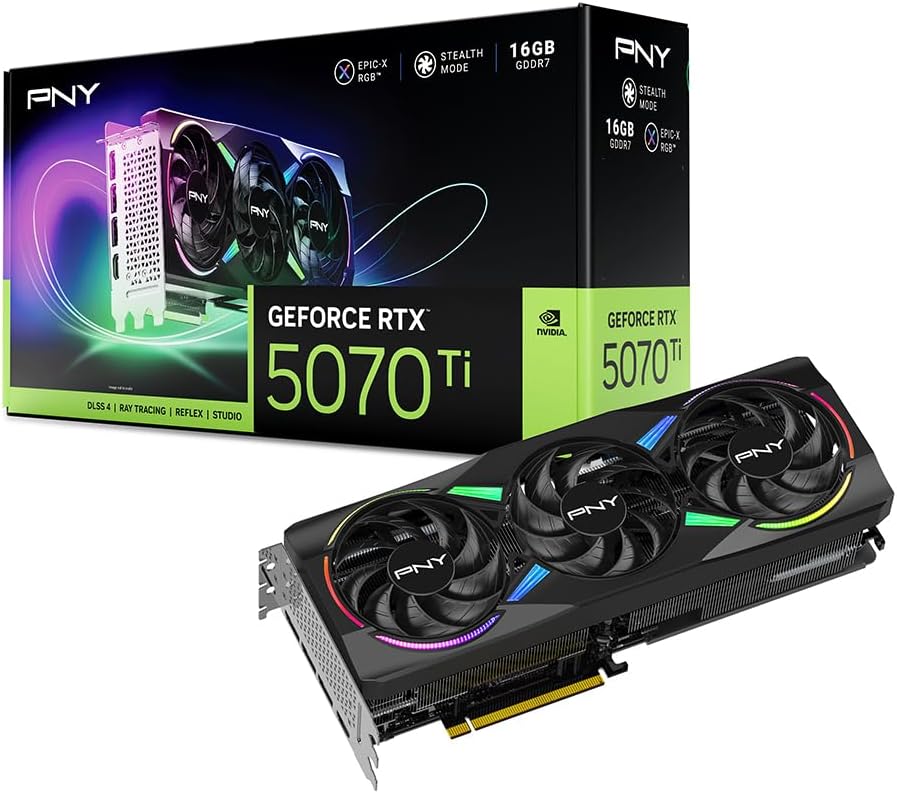


Before you begin, gather the right tools. The table below lists the essential hardware and software that make overclocking a graphics card smooth, stable, and safe, whether you are tuning a budget card or a flagship.
| Product | Best For | Standout Feature | Rating |
|---|---|---|---|
| GeForce RTX 5080 | High-end overclocking headroom | Robust cooler and power delivery | 4.9/5 |
| Radeon RX 9070 XT | Value overclocking | Generous stock power limit | 4.8/5 |
| High-airflow ATX case | Keeping overclocks cool | Mesh front and multiple fan mounts | 4.7/5 |
| 850W 80+ Gold PSU | Stable power headroom | Clean voltage under load | 4.7/5 |
| Quiet high-static-pressure fans | Lowering GPU temperatures | Strong airflow at low noise | 4.5/5 |
Quick answer: Our top pick in 2026 is the GeForce RTX 5080 — our #1 rated choice. See the full ranked comparison, alternatives and buying advice below.
How to Overclock a Graphics Card Step by Step
Start by downloading a reliable overclocking utility such as MSI Afterburner alongside a monitoring overlay and a benchmark like a built-in game test or a dedicated stress tool. The golden rule is patience: raise one value at a time in small increments, test for stability, then repeat. Rushing to a big overclock invites crashes and wasted time. Understanding your card’s baseline helps, so if you are new to GPUs, our explainer on what makes a good GPU clarifies the clocks and memory specs you will be adjusting.
Begin with the power and temperature limits. Raising the power limit slider to its maximum gives the card more headroom to sustain higher clocks, while raising the temperature limit prevents premature throttling. These changes alone often yield a small boost by letting the card hold its boost clocks longer under load.
Raising the GPU Core Clock Safely
With power headroom set, increase the core clock in steps of around fifteen to twenty-five megahertz. After each bump, run your benchmark or a demanding game for several minutes and watch for artifacts, crashes, or driver resets. If the system stays stable, add another increment. When you hit instability, dial back to the last stable value and leave a small safety margin. This methodical climb reveals your card’s maximum reliable core clock without risking your session’s stability.
Tuning the Memory Clock for Extra Performance
Memory overclocking frequently delivers larger gains than core clocking, especially at high resolutions where bandwidth matters. Raise the memory clock in steps of fifty to one hundred megahertz, testing after each. Watch carefully, because a memory overclock that is too aggressive can cause silent errors that reduce performance rather than improve it, thanks to built-in error correction. Back off at the first sign of artifacts or falling benchmark scores to find the true sweet spot. High-bandwidth cards like those in our best AMD GPUs right now guide often respond especially well to memory tuning.
Managing Temperatures and Cooling
Heat is the enemy of a stable overclock, so cooling deserves attention. Set an aggressive fan curve in your overclocking software to keep the GPU cooler, and ensure your case has strong front-to-back airflow. Adding quiet high-static-pressure fans and choosing a mesh-fronted case both lower temperatures meaningfully. Undervolting is a powerful companion technique, letting you maintain high clocks at lower voltage, which reduces heat and noise. This is doubly important in compact builds, and our guide to the best small form factor graphics cards covers cooling in tight cases.
Stress Testing and Verifying Stability
An overclock that survives a five-minute test may still crash during a long gaming session, so verify stability thoroughly. Run an extended stress test or several hours of your favorite demanding game, watching for crashes, artifacts, or thermal throttling. If everything holds, your overclock is solid. If not, reduce clocks slightly and retest. Documenting your final stable settings lets you reapply them instantly. For gamers weighing whether tuning is worth it, our overall best GPUs for gaming roundup shows how much stock performance each card already offers.
When Overclocking Is and Is Not Worth It
Overclocking shines on cards with cooling and power headroom, delivering free frames that smooth out demanding titles. It matters less on already-efficient or thermally limited cards, where gains are small and noise rises. Slim and low profile cards in particular have little headroom, so if you run one, our guide to the best low profile graphics cards explains why a stock configuration is often the wiser choice for those compact designs.
Frequently Asked Questions
Is overclocking a graphics card safe?
Yes, when done gradually and with monitoring. Modern graphics cards protect themselves by throttling or crashing rather than sustaining permanent damage. As long as you raise clocks in small steps, keep temperatures reasonable, and test for stability, overclocking is a safe way to extract extra free performance from your card.
How much performance can I gain from overclocking?
Most graphics cards gain roughly five to fifteen percent more performance from a stable overclock, though results vary by card, cooling, and silicon quality. Memory overclocking often yields larger gains at high resolutions, while cards with strong coolers and generous power limits typically offer the most overclocking headroom.
What software should I use to overclock a GPU?
MSI Afterburner is the most popular and works across both NVIDIA and AMD cards, offering clock, voltage, power, and fan control plus monitoring. Pair it with a benchmark or stress-testing tool to verify stability, and use an on-screen overlay to watch temperatures and clocks in real time.
Will overclocking void my graphics card warranty?
Software overclocking through utilities like Afterburner rarely voids warranties, since it stays within the card’s built-in safety limits. However, flashing a custom BIOS or physically modifying the card can void coverage. Always check your manufacturer’s specific policy before making any changes beyond standard software-based clock and power adjustments.
Ready to decide? Our #1 pick for 2026 is the GeForce RTX 5080.
Live price & availability on Amazon.
Top picks from this guide
PNYPNY NVIDIA GeForce RTX™ 5070 Slim Dual-Fan, Dual-Slot OC Graphics…$630 \xc2\xb7 98/100PNY NVIDIA GeForce RTX™ 5060 Ti OC Dual Fan, Graphics…$360 \xc2\xb7 97/100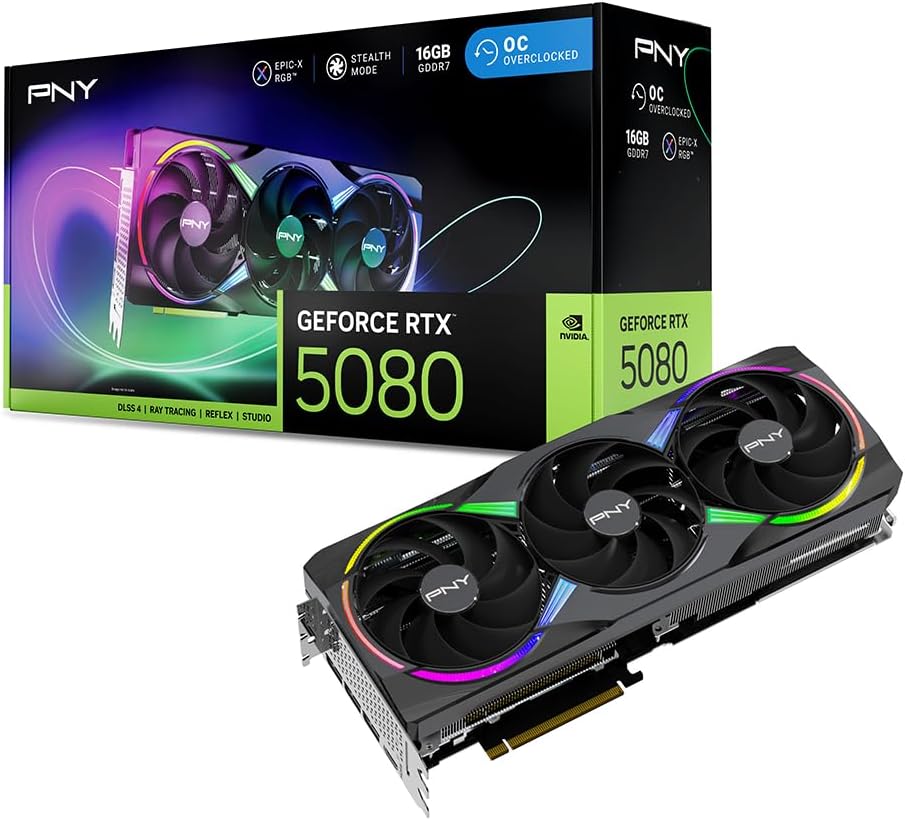 PNYPNY NVIDIA GeForce RTX™ 5080 Epic-X™ ARGB OC Triple Fan,…$1,320 \xc2\xb7 96/100
 PNY NVIDIA GeForce RTX™ 5080 Slim Dual-Fan, Dual-Slot OC Graphics…$1,300 \xc2\xb7 96/100


Write Your Review
No reviews yet. Be the first to share your experience!